Issue:
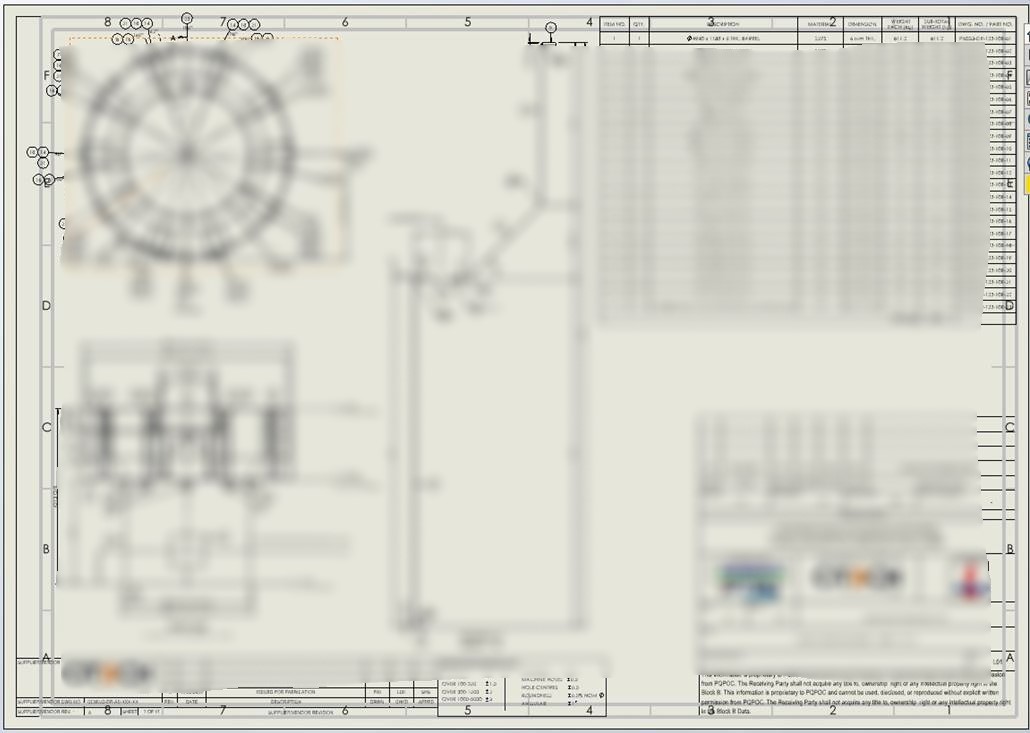
In rare cases, SOLIDWORKS may still reference the sheet format from a previous template. This can result in unwanted borders appearing, sometimes overlapping with your original design.
To verify this, we activated the Automatic Border feature. As seen in the preview, the old sheet format is still present, even though it is no longer needed.

Upon exiting the Automatic Border feature, the unwanted border reappears over your design.
Solution:
1. Delete the unwanted border view (Border1) from the Feature Manager under Sheet Format1.
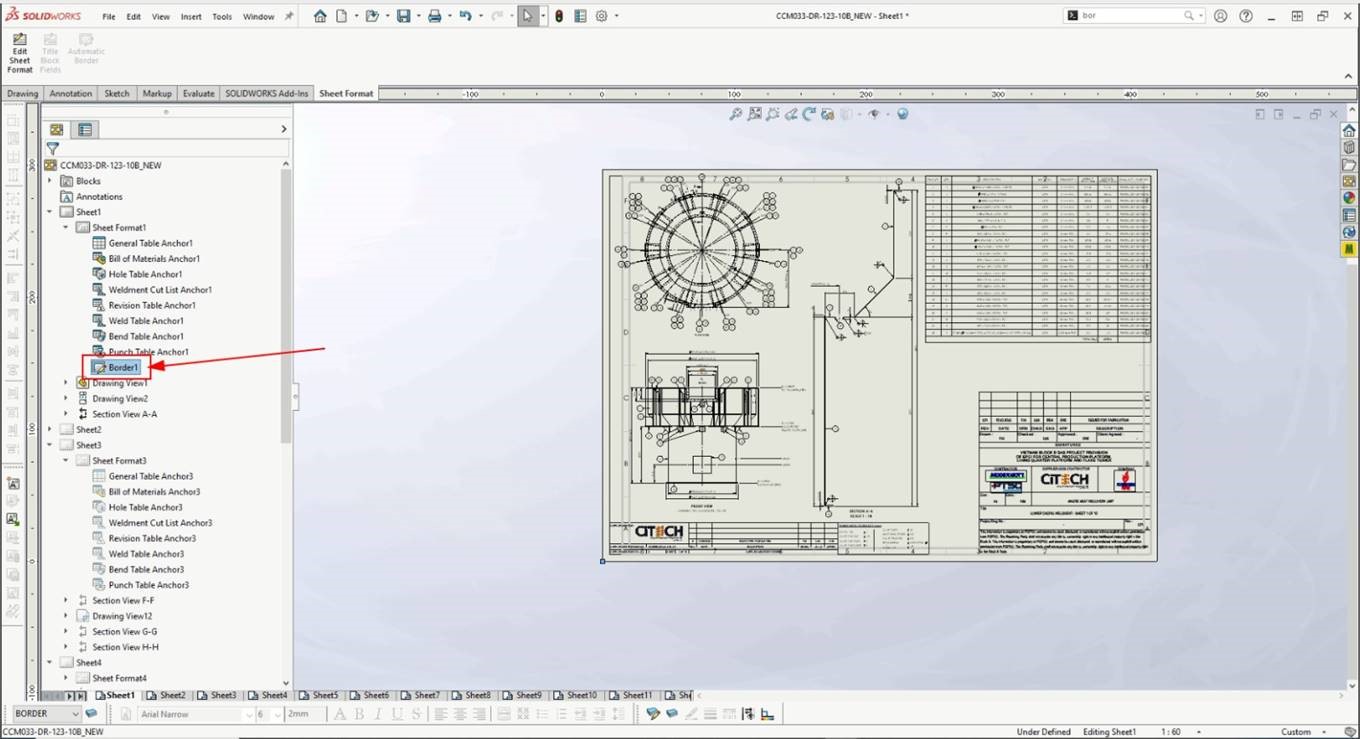
2. Once removed, only the intended border will remain in your design.
Best Practices:
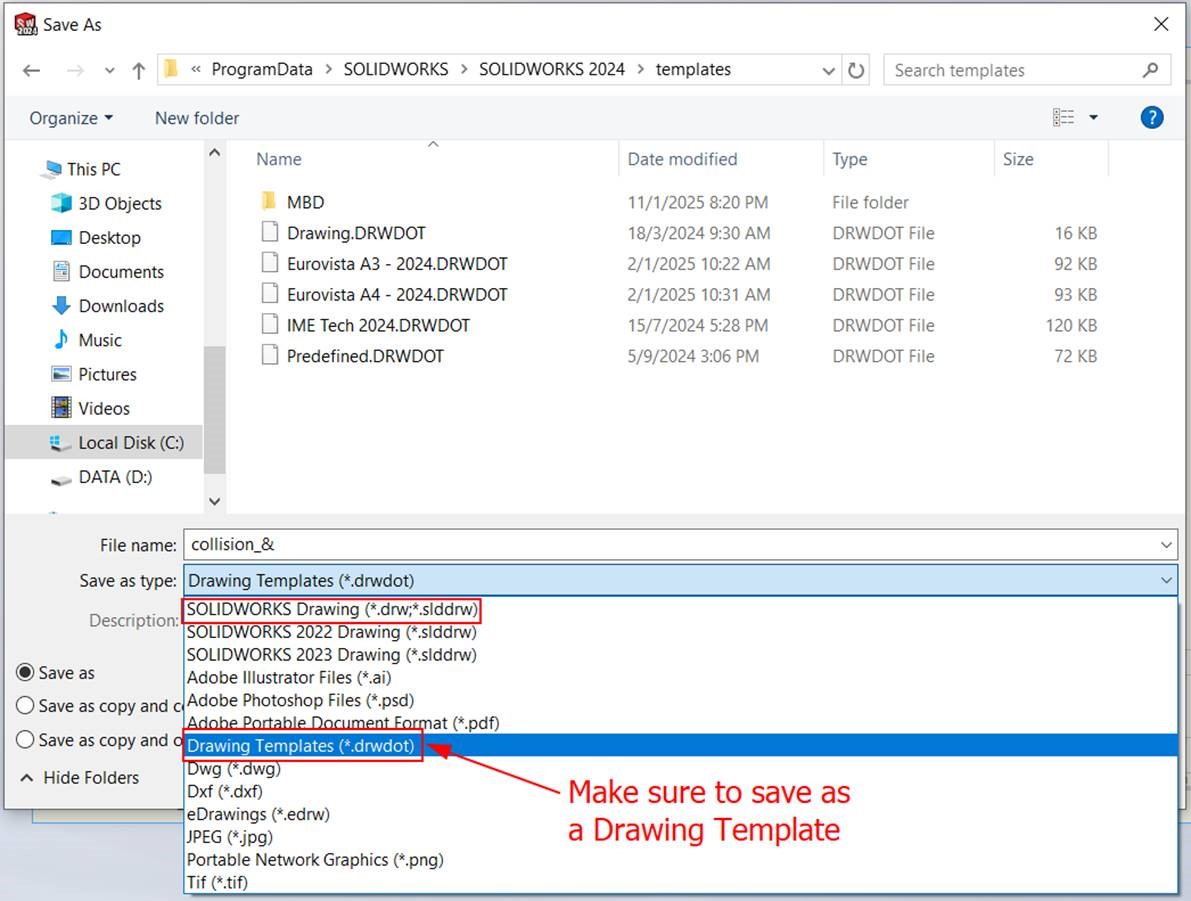
This issue may stem from how the drawing was originally created. If the drawing was started from a SOLIDWORKS Drawing Document (.slddrw), it is recommended to use a Drawing Template (.drwdot) instead.
To avoid this issue in the future:
✔️ Set the correct Sheet Format before saving the template as a .drwdot file.
✔️ Always use a Drawing Template (.drwdot) when starting new drawings.