When a SpeedPak configuration is active, only the selected items, such as faces and reference geometries are selectable. In the graphics area, everything else inside the graphics circle is hidden.
You can adjust the SpeedPak graphics circle to control how much geometry is visible around the pointer.
Adjusting SpeedPak Graphics Circle Transparency:
1. Go to Tools > Options > System Options > Display.
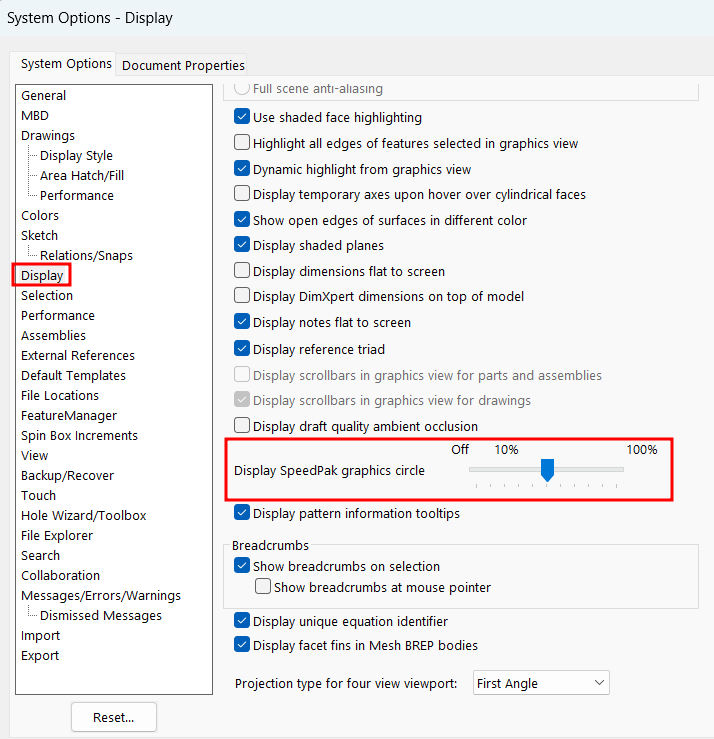
2. Move the Display SpeedPak graphics circle slider to adjust transparency.
- At 100%: Only selectable geometry is visible in the region surrounding the pointer.
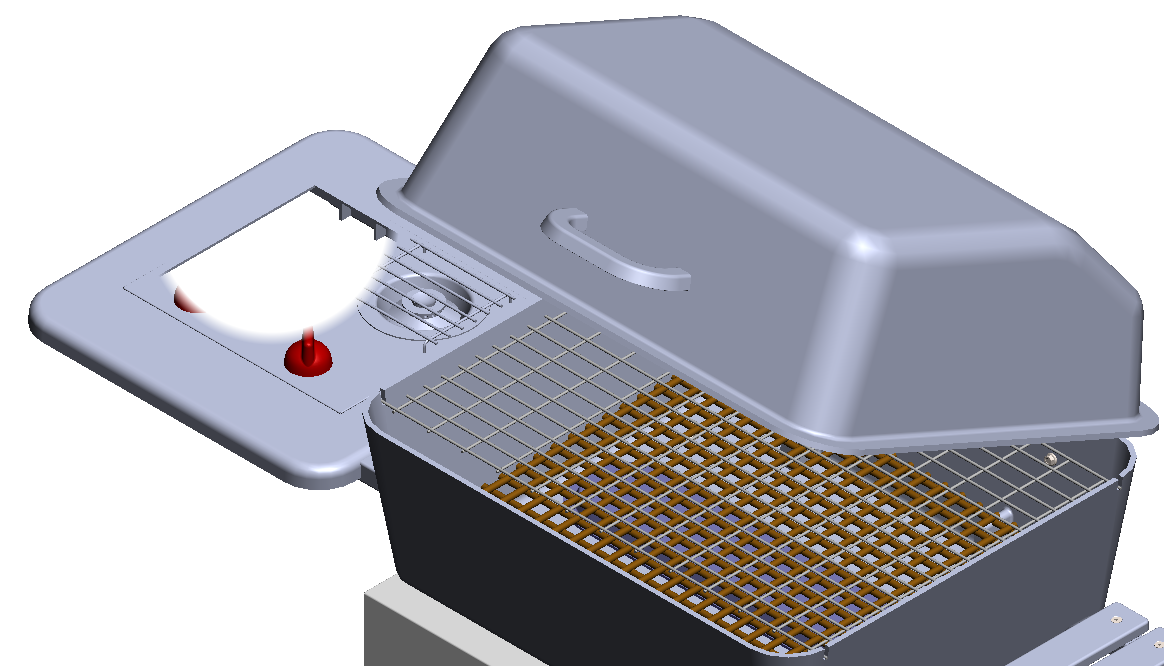
- At lower values: More surrounding geometry becomes visible.

Additional Control:
Press Alt + S to enable or disable the graphics circle.
This feature helps balance performance with usability when working in large assemblies.