When switching from AutoCAD to DraftSight, you don’t have to start from scratch. DraftSight allows you to import many of your AutoCAD settings—such as user interface setup, command aliases, and layer configurations—so you can maintain a familiar working environment and get productive faster.
Exporting AutoCAD settings
Windows 11
- Click Start
- Select All Apps
- Expand the folder for your AutoCAD version
- Click on Export AutoCAD Settings
- Specify a destination folder and a name for the migration package (ZIP file)
Windows 10
- Click Start
- Expand the folder for your AutoCAD version
- Click on Export AutoCAD Settings
- Specify a destination folder and a name for the migration package (ZIP file)
Importing AutoCAD settings to DraftSight
All the settings has been saved to the migration package from before. When extracting the files from this migration package, you will notice that the extracted folder is empty. This is because the Windows operating system sees this migration package as an empty archive. A ZIP utility like WinZIP or WinRAR is needed to properly extract the files and folders in the migration package.
User UI Settings
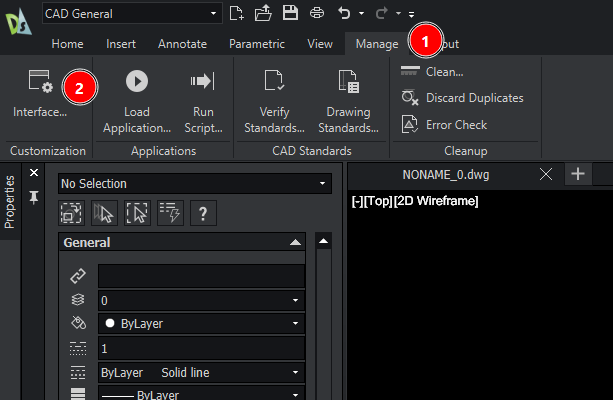
- In DraftSight, navigate to the Manage tab, and click on Interface…
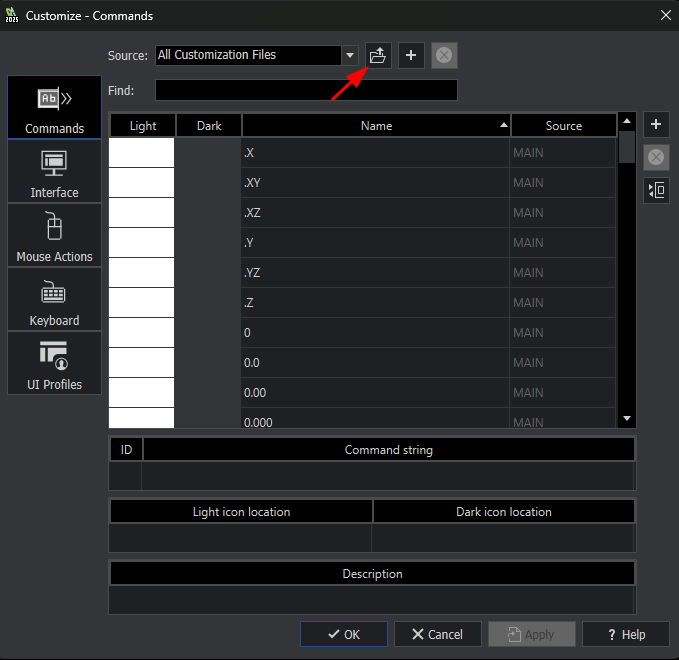
- From the pop-up window, click on Load customization file

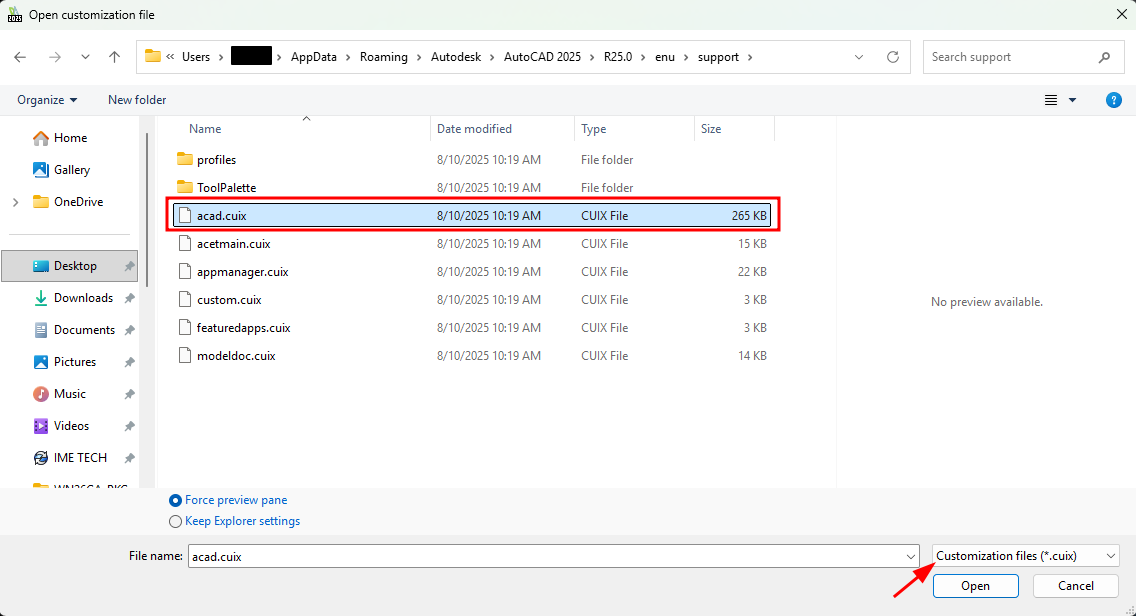
- Set the file type as Customization files (*ciux)
- Go to the folder (migration package location)\Users\(username)\AppData\Roaming\Autodesk\(AutoCAD release)\(AutoCAD version)\enu\support to find the acad.cuix file.
- After that, click Open, and the UI settings will be loaded into DraftSight.
Command Aliases
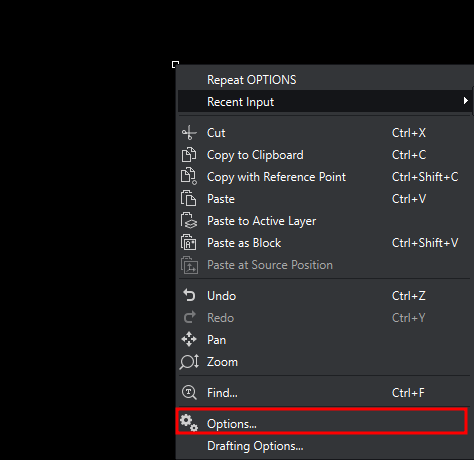
- In DraftSight, right click the graphics area, then click Options
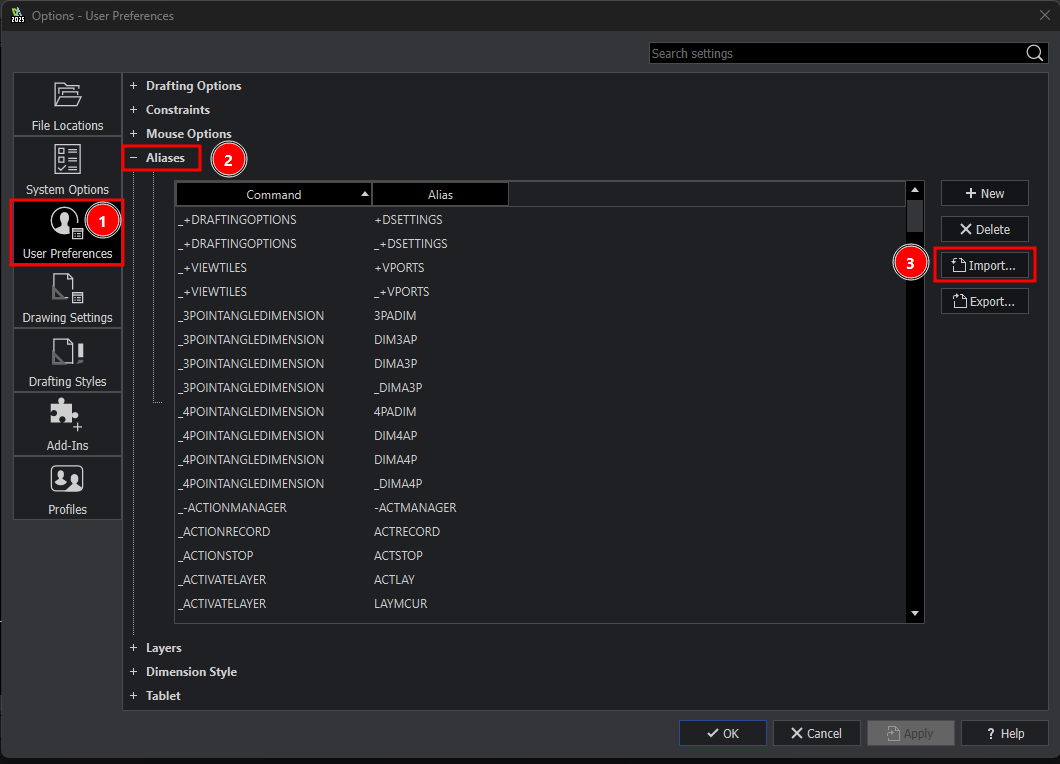
- Next, from the pop-up window, go to User Preferences, and expand the Aliases option. Click on Import…
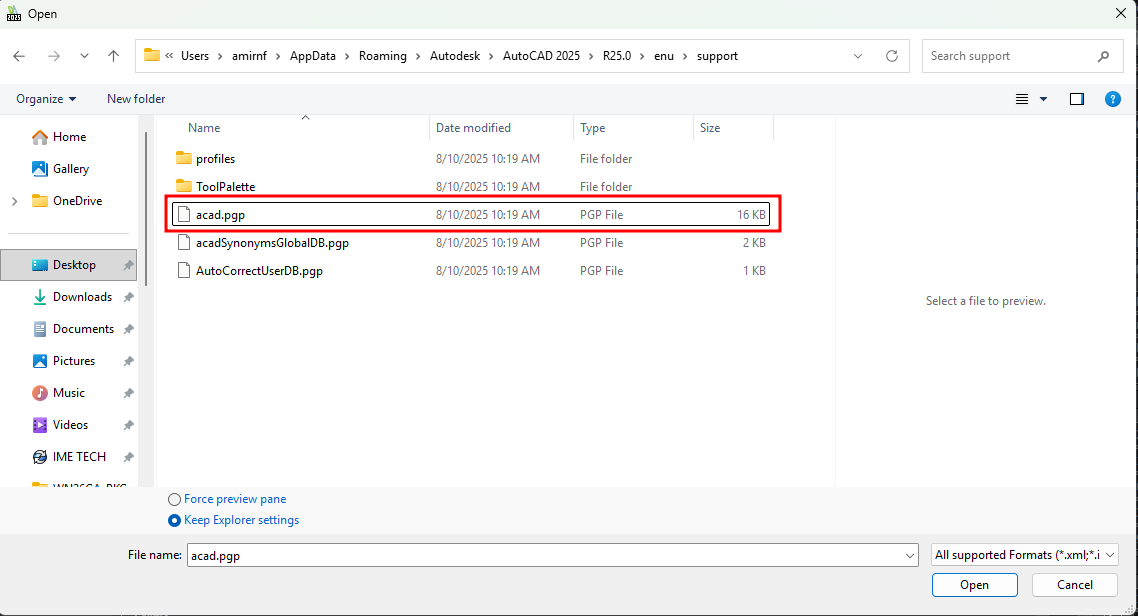
- Then, navigate to the folder (migration package location)\Users\(username)\AppData\Roaming\Autodesk\(AutoCAD release)\(AutoCAD version)\enu\support
- Select the file acad.pgp. This file contains the command aliases from AutoCAD. Then, click Open
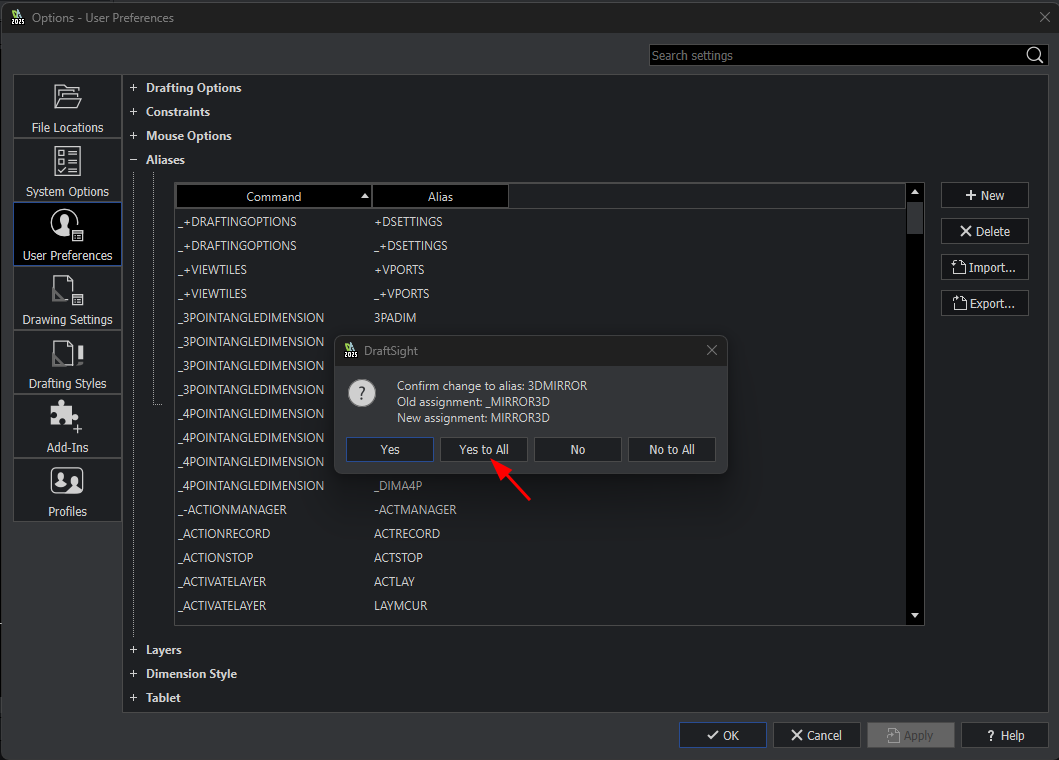
- Finally, in the pop-up menu, click on Yes to All to map all the command aliases from AutoCAD to DraftSight.
Layer Settings
Suppose you have created a file in AutoCAD, and you would like to use the layer that were created in this file as a template in DraftSight:
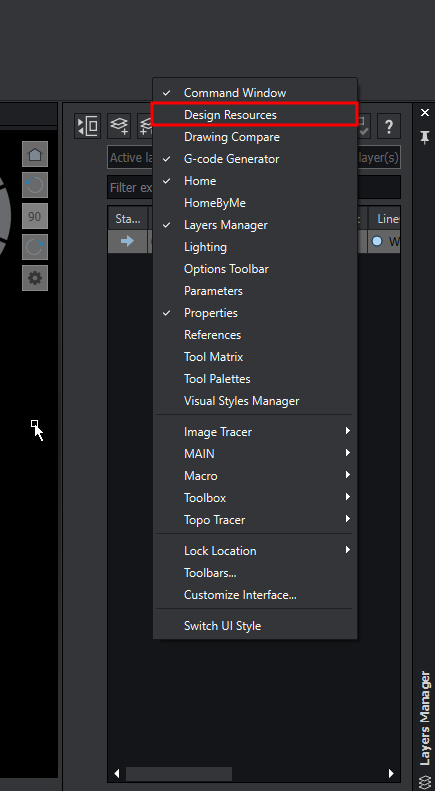
- In DraftSight, right click the ribbon menu, then activate the Design Resources side panel.
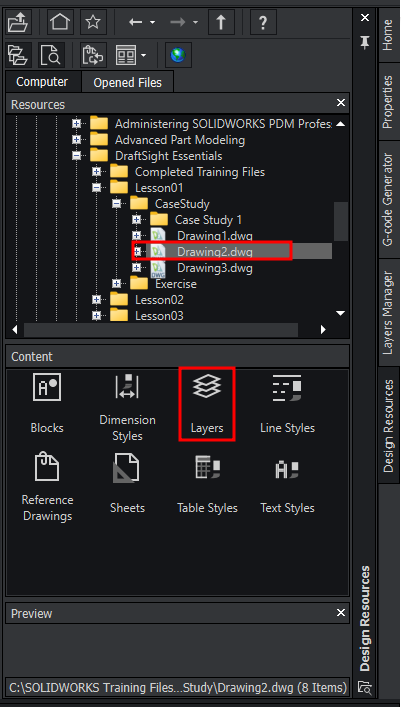
- Then, navigate to the sample drawing file (*dwg) and you may browse the contents of the drawing file
- In the Content window, select Layers, then select all the layers and drag them into the graphics area.
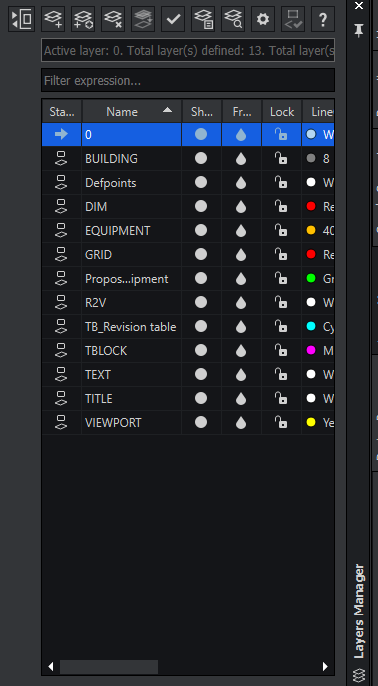
- Now, in the Layers Manager side panel, you can see the imported layers from the drawing file.
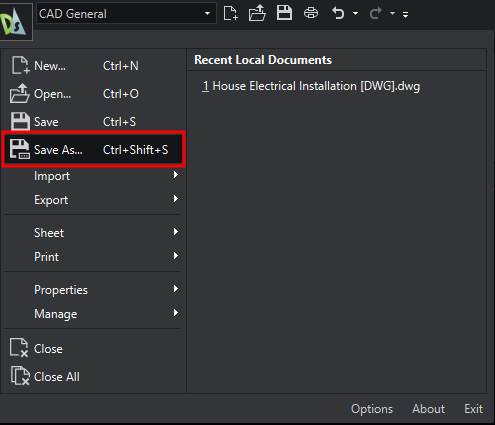
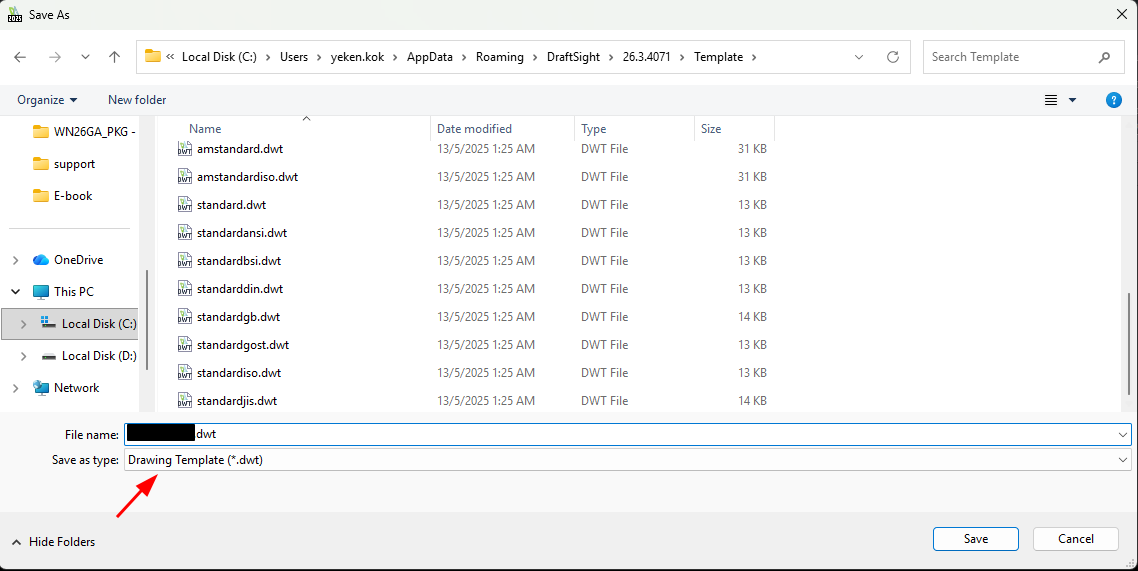
- Click on Save As…
- Set the Save as type: to Drawing Template (*dwt), and give it an appropriate name. You may save it to the default templates location