Line Format toolbar allows users to customize line colors, styles, and thicknesses for better clarity and presentation.
Using the Line Format Toolbar
- Enable the Line Format toolbar from View > Toolbars > Line Format if it is not visible.
- Use the toolbar options to change line color, thickness, and style.
Changing Line Color
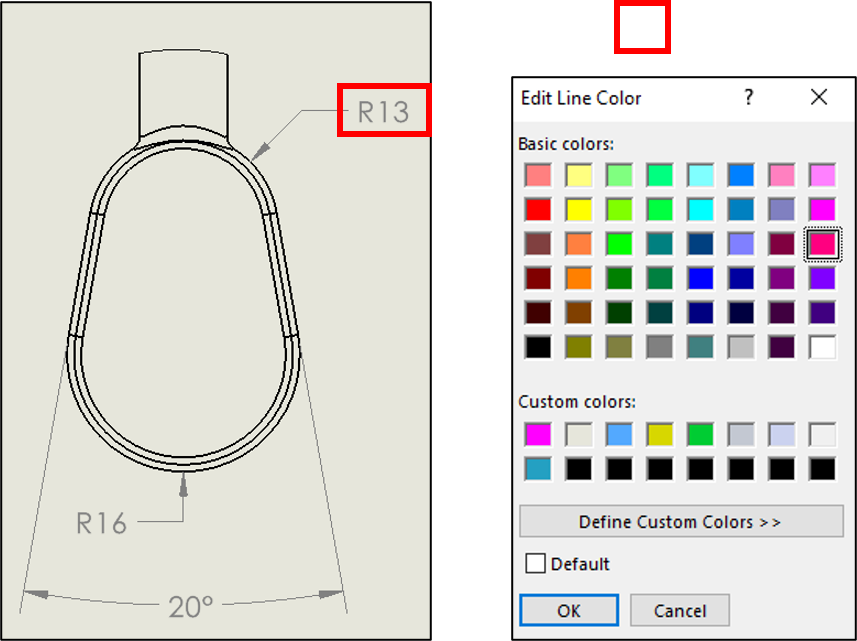
- Click Line Color on the Line Format toolbar.
- Select the desired edges, sketch lines, or annotations in the drawing.
- Choose a color from the palette to apply it.
Modifying Line Thickness & Style
- Click Line Thickness or Line Style to adjust the appearance.
- Choose a predefined style such as solid, dashed, phantom, or centerline.
Activating Color Display Mode
If the assigned colors are not visible:

- Go to Color Display Mode and enable it.
- This ensures that all line color modifications are displayed correctly in the drawing.