In SOLIDWORKS MBD, the text scale of DimXpert annotations refers to the global scaling factor applied to all annotation text (like dimensions, tolerances, datums) in a 3D annotation view.
➡ This scale controls how large or small the text appears relative to the model size in 3D views (e.g., Front, Top, ISO).
➡ Common default text scales: 1:1, 2:1, 3:2, etc.
Important: This is different from font size or font scale on individual dimensions, it applies to the whole annotation view.
1. Open your part file with DimXpert annotations.

2. Ensure annotations are visible:
Go to View > Hide/Show > Annotations or click the Annotations icon in the Heads-Up View toolbar.

3. Locate the Annotation View
- In the FeatureManager tree, expand the Annotations folder.
- You’ll see views like:
- Front Annotations
- Top Annotations
- ISO Annotations, etc.

4. Right-Click the Annotation View and select ‘Details..’.
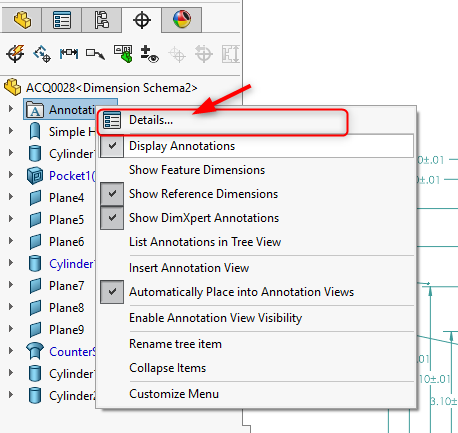
5. Check Annotation Scale
- In the Properties dialog, look for:
- Text Scale
- It will show something like:
2:1, 1:1, 3:2, etc.
